 US – English
 UK – English
 Canada – English
 Australia – English
 Danmark – Dansk
 DACH - Deutsch
 France – Français
 España – Español
 Sverige – Svenska
 Italia – Italiano
 Nederland – Nederlands
 Portugal – Português
 Suomi – Suomi
 Norge – Norsk
 日本 – 日本語
 Romanian – Română












How to Automatically Shut Down Your Office PCs Over the Weekend
Run your entire firm on one platform

Our lives are beset by small tasks, such as shutting down our computers. No big deal, but because we’re sure you have a million better things to do, you might want to do it automatically. You might also be away from your computer unexpectedly, or you might need it to run a task while you’re away for a while…things come up, and you don’t want your sensitive information to be one of them. If you’re a company, running a dozen computers all week, you probably also want to cut your expenditures over the weekend.
To do this, you have at least two options. One is to use the Windows Task Scheduler. The other is to use a dedicated third-party software.
Table of сontents
Using Task Scheduler to schedule an automatic shutdown of your PC
Task Scheduler is exactly what it sounds like, a tool that gives you control over things your computer does in your absence. These can get pretty specific and elaborate, but scheduling a shut-down of your PC is relatively simple.
1. Open Task SchedulerThe easiest way to open Task Scheduler is to type ‘schedule’ into the search field in your main taskbar or Start Menu, then select it when it comes up in the search result.
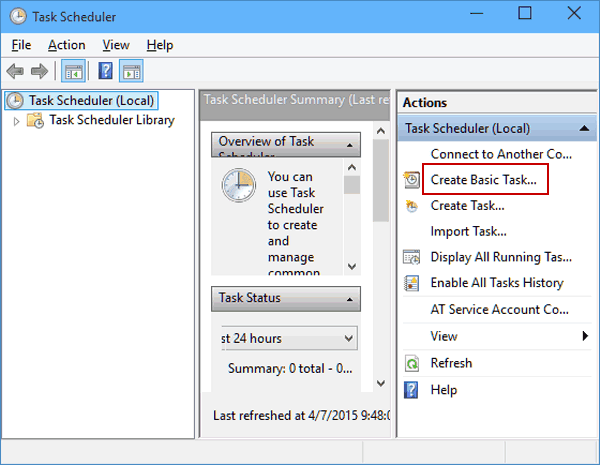
2. Create Basic TaskOnce you’ve opened Task Scheduler, you’ll see ‘Create Basic Task’ on the right hand side; click on it.
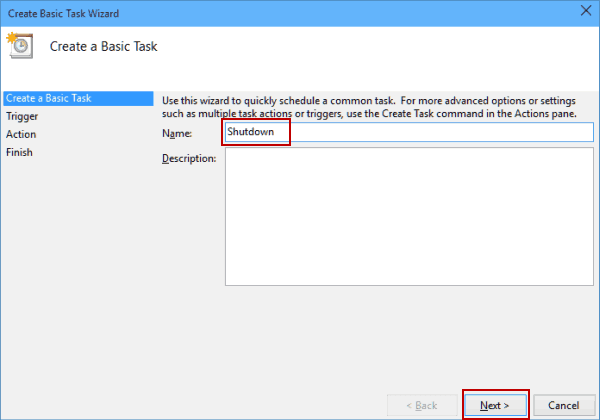
3. Enter a name for your task
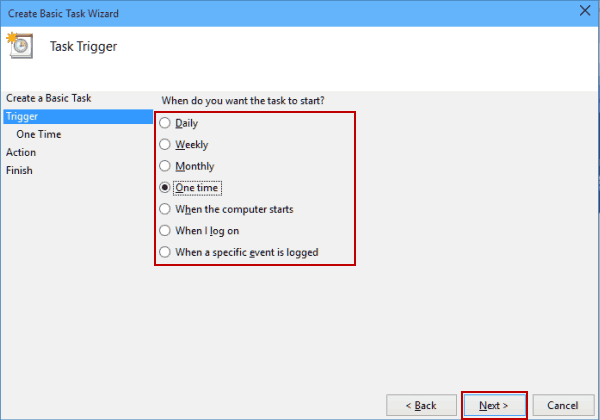
4. Select a start time for your taskIf you want your company’s PC’s to shut down for the weekend, for example, select ‘Weekly.’
5. Enter date when you’d like scheduling to begin and the time at which it should occur
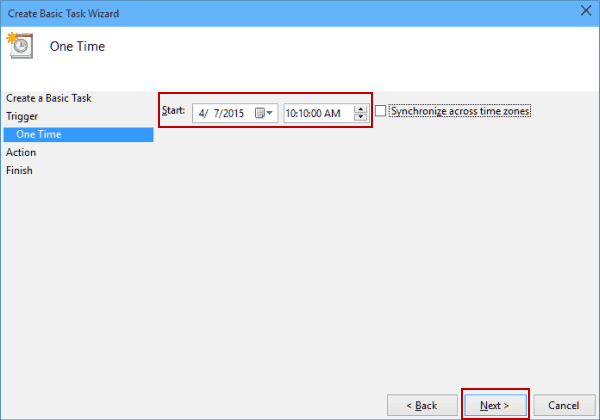
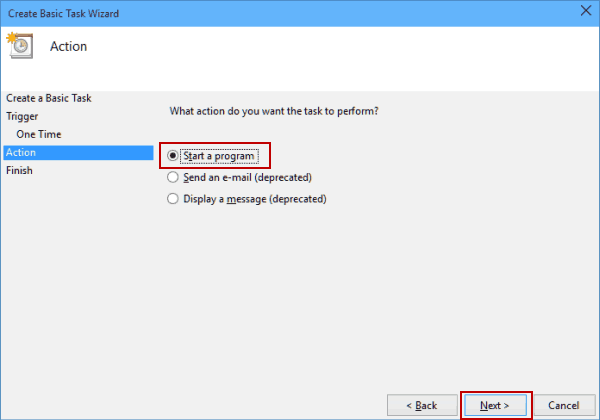
6. Select ‘Start a program’
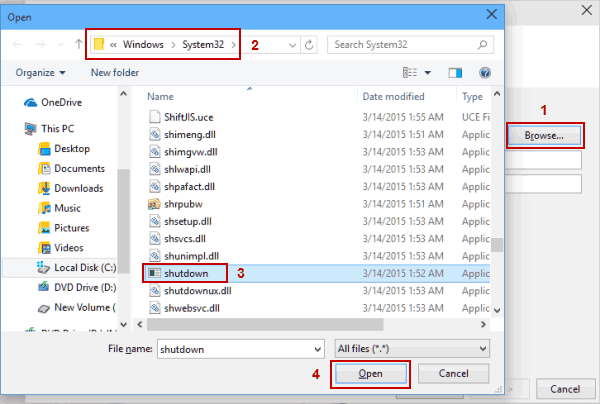
7. Now click on the ‘Browse’ button and go to C:WindowsSystem32.Once there, select a file called ** ‘shutdown’ ** and click ‘Open.’
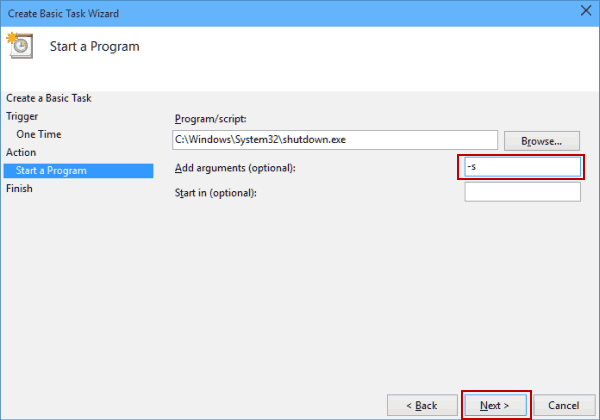
8. Finally, in the ‘Add arguments’ field type in ‘-s’ and click ‘Next.’
9. You will now see the information for the task you just scheduled. If everything looks right, click ‘Finish’ to schedule your automatic shutdowns.
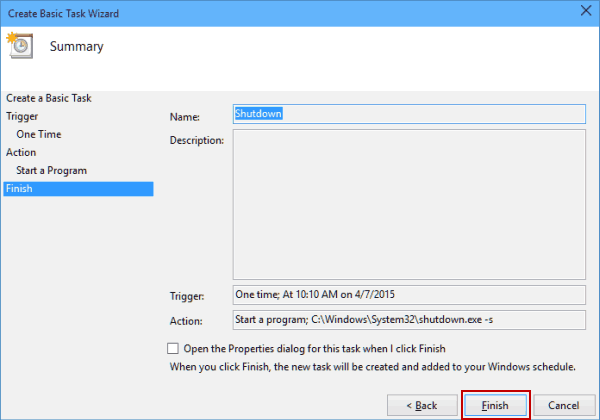
Using KShutdown to schedule an automatic shutdown of your PC
If you prefer a dedicated app to shut down your office PCs, you can use freeware such as KShutdown, which as its name suggests is specifically made for this purpose. This utility for Windows and Linux doesn’t need to be installed in a particular computer to do its job, a feature that might make it particularly suitable for companies.
KShutdown can not only shut down your computer, it also lets you schedule all kinds of tasks and extras: turn on/off, restart, hibernate, detect user inactivity, and more. So if you’re running a company, some of these might come in handy. It also has a simple self-explanatory interface, which is always helpful.
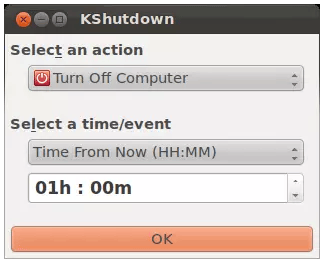
KShutdown works in two ways.
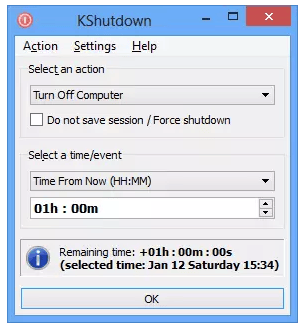
1. Setting a timerWhatever action you want KShutdown to perform, you can set a timer to execute it in a few minutes’ or hours’ time. When the time is up, the software will trigger the action.
2. Setting a date and timeYou can also schedule a specific date and time for when you want KShutdown to perform a task. Or even tell it to wait for a certain program or action to complete before performing the scheduled task. Likewise, you can have it detect periods of inactivity before executing the task you scheduled for it.
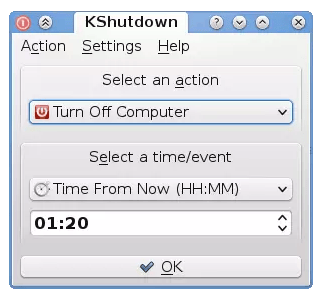
You can download KShutdown hereWhatever method you choose, it’s nice to be aware that you don’t need to keep your machines running when you or your staff are not around – and that you don’t even need to be there to do so.

Mary is a passionate technical writer who takes care of help documentation, social media and blog posts at TaxDome. She knows for sure that the best thing she can do to make the world a better place is to keep writing, so she does. And when she is not at her desk, you can find her traveling, doing yoga, gardening, or having fun with her kids.
Get your free guide

Thank you!
The guide copy has been sent to your email. Please check your inbox!
Recommended articles

Niche Business Accounting Report statistics: what business clients will pay for specialized expertise

Buy Now, Pay Later: offer clients payment flexibility

Top AI tools for accountants in 2026: key features and use cases compared