 US – English
 UK – English
 Canada – English
 Australia – English
 Danmark – Dansk
 DACH - Deutsch
 France – Français
 España – Español
 Sverige – Svenska
 Italia – Italiano
 Nederland – Nederlands
 Portugal – Português
 Suomi – Suomi
 Norge – Norsk
 日本 – 日本語
 Romanian – Română

Webinar recap and Q&A: Fall Update 2026
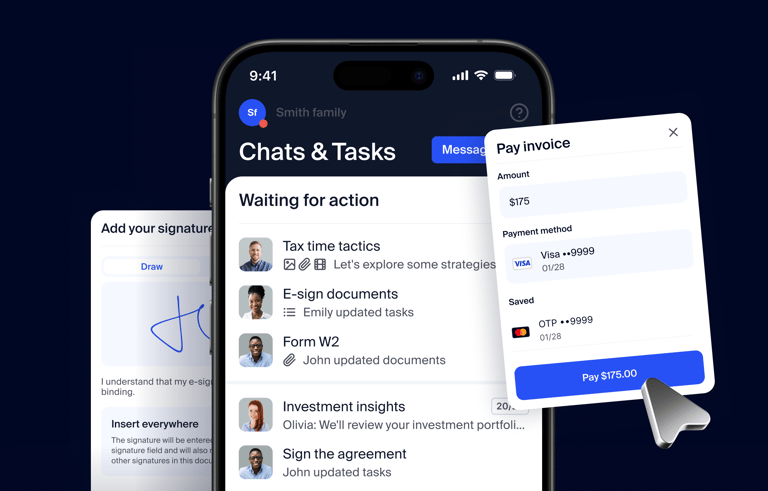
Run your entire firm on one platform

Last week, we brought together Ilya (Chief Product Officer) and Petar (Chief Revenue Officer) for a live webinar showcasing the Fall Update 2026. Together with three accounting firm owners, Ryan Bakke, Mitch Petracca, and Joel Yaeger, they discussed how TaxDome is helping firms use AI to handle more of the busywork for their teams and deliver premium client experiences.
Nearly 1,500 people tuned in live, and the room was ready for it: about 90% of attendees who answered our live poll said their team already uses AI in some way. The energy was real, questions came fast, and it was clear we’re heading in the right direction.
Table of сontents
Here’s what we covered
The session focused on two things that decide whether a firm wins: client experience and firm operations. Clients want a personal, easy experience, and Petar framed it perfectly: “This is why they stay with you. This is why they refer you. And this is also a big reason why they pay you.”
Everything in this update builds toward this goal:
- AI for your firm: connect Claude or ChatGPT to TaxDome with MCP and API, ask about your firm’s data, and have it draft and take action for you. Your clients can also connect their own Claude or ChatGPT and ask what your firm needs from them next
- AI for your clients: free for every client. Clients connect their own Claude or ChatGPT, ask what your firm still needs from them, and get it done from there
- Personalized checklists: created automatically from your tax software, in bulk, for every 1040 client at once. Each client gets a list customized to them, like “W-2 – Apple” and “1099 – Bank of America,” included in every plan
- One click from your tax software: printing a 1040 starts the delivery, an e-file acknowledgement emails the client, and the firm copy goes to the private folder (coming in December)
- Delivery: a finished return goes to signed and paid in one sitting. AI prepares the package for your review, you choose where approval and the invoice come in, and the job moves forward on its own once the client is done
- New native integrations: GruntWorx (coming this season) sorts client documents and extracts 1040 data checked by human verifiers, and Ping (up next) adds call notes and revenue intelligence. They join Juno, with more tool categories coming
- Payments: tap-to-pay on the TaxDome terminal in the office and Buy Now, Pay Later online, so you get paid faster and receive the full amount up front
- New pricing model: one plan that covers your whole team, priced per active account on a sliding scale at less than $1 per client per month, with a personalized transition offer for every existing firm
Got questions about any of these new updates? Take a look at the Q&A transcript below to see all of the questions answered during the live webinar.
Get ready for tax season 2027
Want a deeper look at how firms put these updates to work? Join us for our Get Ready for Tax Season 2027 webinar. It’s the sixth year of a series that more than 100,000 professionals have watched.
Petar and Ilya will be back on December 7 at 2 PM EST to walk you through a full tax season in TaxDome, live, from onboarding to delivery. Jonny Baker, CFO at Lone Star Chemical and a business client of a TaxDome firm, will join them to show how your clients can now send you documents without opening the portal, right from the tools they use every day.
Save your spot to see what a tax season looks like on the platform rated 4.9/5 by 40,000+ clients.
Then, from December 8 to 10, set up each stage for your own firm in three free bootcamp sessions. Save your bootcamp spot.
Fall Update 2026 Q&A: your questions, answered
1. Client intake
What are personalized checklists?
Every client gets their own checklist of exactly what you need from them this year, built from their prior-year return in your tax software. In about 10 minutes, you can create checklists for all of your 1040 clients at once.
Instead of a generic “W-2” or “1099,” each client sees items like “W-2 – Apple” and “1099 – Bank of America.” And it’s not just documents: the checklist also asks clients for things like IP PINs and updated driver’s licenses.
Clients upload from desktop or the mobile app, and AI matches each file to the right item, so your team isn’t sorting files or guessing what’s missing. Comparable intake tools charge $15–20 per client. In TaxDome, it’s included for every client.
This past tax season, firms using TaxDome sent more than 300,000 checklists to their clients. This release makes checklists even easier to create and send, so every firm can give each client a personalized experience.
How do I create personalized checklists from my tax software?
It takes about 10 minutes for all of your 1040 clients:
- Click New checklist and select the option to import from tax software.
- Pick your tax software and follow the built-in instructions
- Upload the requested files. TaxDome pulls in all of those clients at once.
- Review the account matching screen and match any accounts TaxDome couldn’t pair automatically. Names don’t always match between your tax software and TaxDome.
- The checklists are created as drafts.
Why drafts: nothing goes to clients until you’re ready. Your team can review each checklist and remove items you know a client no longer needs.
The customer will receive the checklist when you send them an organizer.
Which tax software is supported?
Drake is available now. UltraTax, Lacerte, ProSeries, and ATX are rolling out in beta, and nearly every firm should see them in their portal within about two weeks. ProConnect and CCH Axcess follow over the next weeks.
The import currently covers Form 1040. If your tax software isn’t listed, you can still build checklists manually or by CSV import. Tell your TaxDome customer success contact which software you use, since that feedback shapes what’s added next.
Is this the same AI checklist feature as last season?
No. The earlier AI option built one checklist at a time from a return PDF. The new import creates personalized checklists directly from your tax software, in bulk, for every client in it at once. The import replaces the older one-by-one generator.
What's the difference between an organizer and a checklist?
An organizer is the questionnaire clients fill out. A checklist is the personalized list of documents a client needs to upload, like specific W-2s, 1099s, and K-1s.
They work together. An organizer can have a checklist attached, so the client sees both in one flow. See Create and send document checklists.
Can I send a checklist without an organizer questionnaire?
Yes. A checklist always travels inside an organizer, but that organizer can be checklist-only. Click Send checklist only, and TaxDome creates an organizer with just an introduction page and the checklist.
In TaxDome it shows as an organizer sent. The client just sees a welcome message and their checklist, with no questionnaire to fill out.
Pipelines are optional. You can send checklists manually from the client’s account. See Send from the checklist.
Can I send checklists in bulk?
Yes, of course! We recommend utilizing pipeline automation, so each step triggers the next and nothing falls through the cracks. The ready-made pipeline templates in the TaxDome Community have this built in. See “How do checklists fit into my pipeline automations?” in the Workflow section.
Link the right checklist in your organizer template. Accounts can now hold many checklists, so each organizer template needs to say which one to attach, for example “2026 1040.” Before this release there was only one checklist per client, so the setting was simply Attach checklist. Check your existing templates and pick the checklist each one should send.
Multiple checklists also mean you can use them across tax years and for other services, like onboarding or bookkeeping. See the next question for a monthly bookkeeping example.
If you still want to send in bulk, go to the organizers list, filter by Checklist > Created, select the clients, click Send organizer, and turn on Attach checklist. Clients without a checklist get the questionnaire only. See Send in bulk.
How do I set up monthly bookkeeping checklists?
Set it up once, and every month each client automatically gets a fresh checklist of the statements you need, without anyone sending it by hand.
- Create a bookkeeping organizer template.
- In it, attach the bookkeeping checklist and choose which period to pull, for example the most recent period or the one before it.
- In your bookkeeping pipeline, set up a recurring job that runs once a month.
- In the first stage, add an automation that sends the organizer.
Each month, TaxDome creates an organizer named for the period, like “March bookkeeping,” using a date placeholder for last month, and sends it with the checklist attached.
When a client’s needs change, like a new bank account, update their checklist once. Each new month rolls forward that client’s most recent checklist, so the change carries over.
Will clients feel asked twice if my organizer also requests documents?
The questionnaire and the checklist are separate sections of one organizer, and the client submits them separately. To avoid duplicate document requests, remove document upload questions from your organizer, or start from the updated 2026 organizer published in the TaxDome Community, which is built to work with checklists.
How do I follow up on documents that are still missing?
No more writing follow-up emails item by item. A new button creates a follow-up request prefilled with every outstanding item. You start with a draft, add anything else you need, and send it.
A new combined view is also coming that shows a client’s organizer answers and checklist together, so your team can review and resolve items in one place.
What if a client doesn't have a document?
For documents they don’t have, clients choose a reason like Not applicable or Will upload later, with an expected date and an email reminder on that date. See Complete a document checklist.
Can organizer answers carry over from last year?
Yes. When a client opens a new organizer based on the same template, they click Pre-fill answers to pull in previous answers like addresses, dates of birth, and dependents. See Enable clients to pre-populate answers.
What does rollover do?
Rollover saves your team from rebuilding checklists every year: it creates this year’s checklist from last year’s. If your team already built and refined checklists, click Rollover to carry them forward, for example turning a 2025 1040 checklist into the 2026 one. In future years, checklists already in your system just roll over.
Are checklists only for 1040 returns?
No. Only the tax software import is limited to Form 1040 for now. You can create checklists manually for 1120, 1120-S, 1065, and other return types using built-in document types and custom items.
We’ve added a default number of categories for the USA and Canada, and you can create your own with its own period and recurrence settings.
For bookkeeping or other recurring work, like a list of bank statements needed monthly, you can import checklist items from a CSV.
Can my team upload documents and have them matched to the checklist?
yes, in the webinar, we gave a preview of a new interface, which makes it really easy to review both the organizer and checklist side by side, as well as match anything off if your team gets it for the client.
And remember, on the client side, there is automatic matching, renaming, and tagging work for client uploads.
Client uploads that don’t match any item land in an unmatched files category for your team to review.
Can I edit a checklist after it's sent?
Yes. Open the organizer, go to its checklist progress, and choose Edit checklist to add or remove items or change descriptions. Changes save automatically. See Manage document checklists.
Does it work if my tax software is hosted, like on Rightworks or UltraTax Virtual Office?
Yes. Where your tax software runs doesn’t matter, whether that’s a virtual server, a hosting provider, or your own computer. Each supported tax software has step-by-step instructions.
Can I import for clients who use two different tax software packages?
Yes. The import asks you to choose one tax software at a time, so run a separate import for each one.
Will importing overwrite checklists my team already created manually?
No, anything that is imported will only complete a checklist if it has not been created at all or if it’s created but is empty. If it’s created and has something in it, it will be skipped
Do I need to turn on Rename documents for checklist matching to work?
No. Checklist matching works without document renaming.
What is Client Experience AI?
Your clients can ask their own AI assistant, like Claude or ChatGPT, “What does my accountant still need from me?” and get the answer from their TaxDome account: their checklists, requests, and invoices. That means fewer “what do you need from me?” emails and calls for your team, at no extra cost.
One connection covers all of a client’s entities. When something needs a signature or payment, the assistant hands over the exact link to finish it in TaxDome. See the client MCP announcement.
Does Client Experience AI cost anything?
No. Client Experience AI is included in every TaxDome plan, with or without the AI add-on. So are client intake, checklists created directly from your tax software, and tax return delivery. The only paid piece is Tax Return Delivery AI, which is part of the AI add-on.
Who sets it up, and is it required?
It’s fully optional, and the client sets it up themselves. Most clients can open ChatGPT or Claude and ask it to connect TaxDome.
It’s built for clients who already live in their AI assistant, especially those with several entities. TaxDome is preparing a one-pager you can share with clients explaining how to set it up.
What can a client's AI assistant see?
A connection sees only what the client already sees in their own portal. It can’t reach other clients’ accounts or your firm’s internal data. Clients decide what to permission, the same way they would when connecting their email or Google Drive.
2. Tax return delivery
What's new in tax return delivery?
Clients now approve, sign, and pay in one flow, and AI can prepare the delivery package for you. What’s new:
- Templates for introductions, reminders, and letters, set up per return type, like 1040, 1040-X, or trust returns.
- AI prefill of the return details, like taxes owed, refunds, and estimated payments (AI add-on).
- Client approval, which you can add or remove.
- AI signature placement (AI add-on), or place signature fields yourself.
- Invoice placement control: show the invoice after the introduction, as a full paywall at the start, or before signatures.
- Job linking, so the job moves automatically when the client finishes.
This past tax season, firms using TaxDome sent more than 100,000 tax return deliveries to their clients. These updates make each delivery even faster to prepare and simpler for clients to complete.
Is tax return delivery included in my subscription?
Yes. Tax return delivery is fully included for every client, at no extra charge, where comparable delivery tools charge about $20 per return, and everything you’ve set up continues to work the same way.
The AI features for tax return delivery, which prefill the package and place signature fields, are part of the optional AI add-on, with unlimited AI deliveries.
How do I start a delivery from my tax software?
Print the return from your tax software and the TaxDome desktop app pulls it in. For a 1040, click Delivery package to turn it into a delivery in one click. Apply your template, and TaxDome AI will do everything else.
If you’ve already uploaded the document, starting a tax return delivery from the job card links it to the job automatically. See Tax return delivery.
What does the client experience look like?
The client reviews the introduction, highlights, and summary of amounts owed and refunds, then approves, signs, and pays in one flow on desktop or mobile.
That’s what removes the leakage between steps. Instead of approval, payment, and the 8879 each waiting on separate back-and-forth, clients finish everything in about 10 minutes. See Review and sign your tax return.
How do estimated payment reminders work?
It’s all built into the delivery. The tax summary shows clients exactly where they stand: how much they owe, their refunds, and estimated payments for each state and authority. Turn on automatic payment reminders, and clients get a reminder 14 days before each payment deadline for every state and authority on the return.
AI can fill in the tax summary and reminders from the return for you, or you can fill them in manually at no extra cost.
Nobody thanks you for a reminder on September 1, but they’ll be upset if they miss a payment. This takes your team out of the reminder business entirely. If estimates change later, you can edit the tax summary after sending, and changes are visible to the client right away. See Manage tax return delivery.
Can I leave the invoice out, or lock the return until it's paid?
Both. The invoice is optional, so you can remove it if you bill separately. If you link an invoice, you choose where it appears in the flow, including as a full paywall, so the client can’t view the return until they pay.
How do signatures work for joint returns?
You choose the signers from the contacts linked to the account who have portal access. If both spouses are active contacts, you can request each signature individually. AI can place the signature fields for each spouse automatically, using the contacts on file.
Can I add a video?
Yes. Add a video to the introduction by embedding a Loom or YouTube link.
Why use it: tax return delivery bridges the gap between how firms used to deliver returns, meeting every client in person, and how it often happens now: a return sent by email with no context. It’s a scalable way to give clients a great experience while keeping your firm efficient. A short personalized video adds your personal touch on top, so clients see your face and get their questions answered without a meeting.
Can I use tax return delivery for business and other returns?
Yes. You can set up separate delivery templates for each return type, including trust returns and amended returns. The one-click Delivery package button from a printed return is currently built around the 1040 but other modules will be added.
Can clients review and sign their return in Kiosk?
Not yet, but tax return delivery is coming to TaxDome Kiosk before tax season. Kiosk is built for firms that see clients in person, and it’s fully included at no extra cost.
In Kiosk today, clients can sign documents, pay, and complete organizers. Proposals and engagement letters are planned next, so the whole in-person client lifecycle can run through Kiosk.
What is KBA and do I have to use it?
KBA is optional, and your firm decides whether to use it on each signature request. See Knowledge-based authentication.
3. Integrations
Which new partner integrations were announced?
More of your tax prep can now run without leaving TaxDome. Two new native integrations join Juno:
- GruntWorx: AI-powered document sorting and 1040 data extraction, checked by human verifiers. In beta now; details below.
- Ping: a revenue intelligence tool that records client calls, processes the transcripts, and surfaces coaching and upsell opportunities. Its insights flow into TaxDome, so everything stays in your system of record.
What are Juno and GruntWorx, and how do I connect them?
Both cut manual data entry: they take your clients’ tax documents from TaxDome and turn them into data you can import straight into your tax software. Neither requires the AI add-on.
- Juno extracts data from W-2s, 1099s, K-1s, and other documents for 1040, 1120, 1120-S, and 1065 returns, and exports it to Lacerte, ProConnect, Drake, or UltraTax. It’s billed per return, starting with 5 free returns.
- GruntWorx sorts and bookmarks client tax documents and extracts 1040 data, checked by human verifiers, ready to import into your tax software.
To connect Juno:
- A firm owner or admin goes to Settings > Integrations, opens the Juno tab, and clicks Connect.
- Click Start with 5 free returns, then sign up (choose TaxDome as your practice management software) or sign in to your existing Juno account.
- Authorize the integration with TaxDome.
- To send work, select documents in a client’s Docs tab or checklist, click Send to Juno, choose the return type and tax year, and click Send. See Juno management.
To connect GruntWorx: GruntWorx is in beta and rolling out over the coming months. Once it’s available for your firm, you trigger it from within TaxDome.
Ping integration will be coming soon, as well.
Should I choose GruntWorx or Juno?
That’s your call. TaxDome is deliberately building native integrations with more than one tax prep tool, so you have several seamless options and can pick the one that fits your firm. The same approach will carry across other tool categories, so you’re never locked into a single provider.
Does GruntWorx review the tax return?
No. GruntWorx is an AI-powered solution, with human verifiers, that sorts and bookmarks client tax documents and extracts 1040 data that’s ready to import into your tax software. The human verifiers check the extracted data, not the return itself.
How do I set up new clients from my tax software without retyping?
Export your client list from your tax software as a CSV, then import it into TaxDome and map the fields. See Export your client list and Import clients.
How do I use IRS transcripts in TaxDome?
TaxDome has a direct integration with the IRS Transcript Delivery System, so you can request individual or business transcripts without logging into the IRS site.
- Go to Settings > Integrations > IRS and turn on Connect to the IRS.
- In each client’s IRS tab, click Connect to IRS and sign in with your IRS e-Services credentials.
You’ll need a CAF number and a Form 2848 or 8821 on file for each client. Sessions last one hour, and each team member needs their own IRS login. See Connecting to the IRS.
Are phone or VOIP integrations planned?
TaxDome is looking into phone and VOIP integration.
How are new integration partners chosen?
More than 1,000 firm owners answered TaxDome’s integrations survey about the tools they run alongside TaxDome, and that list sets the order. TaxDome reviews the next partners every month and runs due diligence on each one, looking at trust, fit with the TaxDome ecosystem, and future potential. The survey stays open, so send your suggestions through your TaxDome customer success contact.
4. Pricing & plans
How does the new TaxDome pricing work?
Your whole team can now work in TaxDome without paying per seat. You pay per active client account, so preparers, admins, part-time reviewers, and bookkeepers can all be in TaxDome. Every plan includes 20 team members.
It’s a sliding scale, so the more accounts you buy, the less each one costs. Existing firms can see their own price, including their personalized transition offer, under Team & plans. Each active account gets the full client experience, including the portal, mobile app, e-signatures, and Client Experience AI.
Why the change: firms get the most value when the whole team works in one system with the same context. Per-seat pricing pushed firms to leave admins and seasonal staff out to save money. Last season alone, firms bought more than 40,000 seasonal seats.
You can read our interview with AccountingToday here
When does the new pricing apply to my firm?
New firms are on the new pricing now. For existing firms, it applies at your first renewal on or after January 1, 2027. Nothing changes before then.
- Renewing in November or December 2026: your renewal works exactly as it does today.
- Renewing between January and April: your personalized offer includes a May 1 true-up, so you aren’t billed for overages during busy season.
- On a multi-year plan: your current pricing stays in place until your renewal date.
Each existing firm has a personalized offer in their profile for their next renewal.
How do I see my personalized transition offer?
Firm owners and admins can go to Team & plans and look for the Next renewal bar. Every existing firm gets a personalized transition offer there, built around firm size and payment volume.
- Smaller firms get up to 50% off every account they need to buy, on top of the sliding scale, just for being an existing customer.
- Firms processing payments in TaxDome may earn credits and free accounts based on payment volume or receive a discount on any clients they need to buy by meeting payment milestones. Use the payment volume slider on the same page to see the effect on your price.
These two benefits stack. To walk through your numbers with someone, use the in-app chat and ask for a human, or contact your TaxDome customer success contact.
Can I switch to the new pricing before my renewal?
TaxDome is working on a way for existing customers to switch before their renewal. Let your customer success team know you’re interested, and they’ll work out a plan with you.
Does processing payments through TaxDome lower my subscription price?
Yes. Payment volume processed through TaxDome Payments earns credits and free accounts toward your plan, as well as discounts on any purchased clients. For example, a firm working with 500 clients might only need to buy 200 accounts. For many firms, moving payments into TaxDome brings the price well below what they pay today.
You don’t have to wait for your renewal. Volume starts counting as soon as you’re on TaxDome Payments, and it counts toward free accounts at your next renewal, even if that’s years away.
What counts as an active account?
An account becomes active when your firm actually works with that client in TaxDome. The definition is being refined based on firm feedback, and these activities are being removed from the active client definition.
- A client simply logging in.
- Sending a proposal or engagement letter that the prospect never signs.
- Creating a job.
This lets firms keep using TaxDome for lead management, including automatic sign-up, without prospects who never engage you becoming paid accounts.
Contacts aren’t counted separately. Several people on one account still count as one account. For example, a joint return with both spouses as contacts on one account counts once.
TaxDome is refining this definition with the community, so keep sharing your feedback.
Does a client with several entities count as several accounts?
Pricing counts client accounts, not people, so contacts linked to one account count once. Each separate account you actively work with counts separately.
Do I need to archive clients before my renewal?
No. When you renew under the new model, your active count starts at zero. Each account you work with during the plan year counts toward the number you bought, so old or archived accounts don’t count unless you work with them again.
What happens if I need more accounts than I bought?
There’s a monthly true-up. When your active count passes your balance, you get an email showing how many overage accounts you have that month. You can then buy another pack or pay for those accounts one by one, whichever works out better for you.
For firms renewing in Q1 2027 before May 1, there is a May 1 true-up instead of overage charges during busy season. For example, a firm expecting 500 clients could buy a smaller block at renewal, let payment volume in TaxDome cover the rest, and end up with no true-up at all.
Do unused accounts carry over to the next plan year?
No. Unused accounts expire at the end of your license term, and your active count starts at zero at each renewal.
The more you commit upfront, the greater the discount and sliding scale cost per account. Because upfront accounts are priced well below the rate for extra accounts later, many firms buy a small buffer above their expected count. That’s usually cheaper than paying for overage.
What if my firm has a large team or a very large client base?
Every plan includes 20 team members. Firms that need more seats, or that serve thousands of clients, get a custom plan built with the TaxDome sales and customer success teams. Custom plans can include extras such as a branded mobile app for your firm.
Can I still add monthly seats on my current plan?
Yes. If you’re on a current per-seat plan, the option to add monthly seats stays available until your renewal, at the same price. Monthly seats end automatically at renewal, so you don’t need to cancel them.
Can I still renew for multiple years?
If you’re on a multi-year plan today, you can extend it in Q4. Otherwise, multi-year plans are no longer offered. Renewals through December 31, 2026 still renew under the current plan structure.
Can I pay my TaxDome subscription in installments?
Yes, depending on deal size. Ask your customer success team about your situation.
5. Add-ons: AI add-on, MCP & API
What's included free, and what needs the AI add-on?
Included in your subscription (not exhaustive):
- The client app, client intake, organizers, and document requests.
- Unlimited intake: organizers and personalized checklists created directly from your tax software, and AI matching of client uploads.
- Unlimited Tax return delivery.
- Unlimited E-signatures, proposals, payments, and ready-made automations.
- Client Experience AI, so clients can connect their own AI assistant to TaxDome and in-product AI features that make their experience smoother.
Part of the AI add-on:
- Unlimited Tax Return Delivery AI, which prefills the package and places signature fields, with unlimited deliveries.
- AI document organization, which renames and tags incoming documents.
- MCP and API access.
- TaxDome Atlas agents (beta).
What is MCP, and what is the API?
Ask an AI assistant about your firm and get answers straight from TaxDome, like “Which jobs are overdue, and which stage is each one in?” or “Brief me on the Smith account: open jobs, tasks, recent notes, and unpaid invoices.” MCP and the API are what make that possible.
MCP (Model Context Protocol) connects your AI assistant, like Claude or ChatGPT, to TaxDome, so it can look things up or take action for you within the permissions you set. Because the same assistant can also connect to your email, calendar, and spreadsheets, it can work across all of them in one conversation.
The API lets your other systems read and write TaxDome data automatically, so your tools stay in sync without anyone moving data by hand. For example, when a deal closes in HubSpot, the client account is created in TaxDome automatically.
Both are part of the AI add-on. See TaxDome API & MCP explained.
How do I connect Claude or ChatGPT as a firm?
- In TaxDome, go to Settings > API & MCP, turn on MCP for your firm, and grant access to the team members who need it.
- In Claude or ChatGPT, open the connectors directory, find TaxDome, and sign in.
- Review the requested permissions and allow access.
Each team member connects with their own login, and each connection follows that person’s TaxDome permissions. See Connect MCP.
Which AI assistants work with MCP?
TaxDome is built into the Claude and ChatGPT connector directories, so you can add it there in a few clicks. Other assistants and tools that support MCP can connect through a custom MCP connection. See TaxDome API & MCP explained.
What can AI assistants access through MCP?
You stay in control. TaxDome checks every request against the permissions you set, so an AI assistant or automation can only do what you allowed:
- Firm owners decide, person by person, who in the firm can use MCP and the API.
- For each area of TaxDome, you choose what a connection may do, for example read only, or read and change.
- Each user has their own permissions. A connection can never do more than the person who set it up, and each person signs in with their own login or key, so they only reach the clients they can already see.
For example, if you connect Claude with read-only access to clients and invoices and it tries to delete a client or edit an invoice, TaxDome refuses the change. You can change these permissions at any time.
Within those limits, it can read and draft across areas like chats, emails, and documents, and it can read organizer data. Reading the contents of client files isn’t available through MCP today. See the MCP tool catalog for everything a connection can do.
What is TaxDome Atlas?
Atlas is TaxDome’s own set of AI agents that work inside TaxDome. It’s in beta now and rolling out over the coming weeks as part of the AI add-on.
How is the AI add-on priced?
The AI add-on is one flat monthly price for the whole firm, not per user. It’s month-to-month, with no annual commitment, and includes unlimited Tax Return Delivery AI on every return.
Comparable single-purpose tax AI tools charge $15–25 per return, or $7,500+ a season for 500 returns.
Why per firm: AI agents act with the permissions of the user who sets them up. Pricing per firm means every team member can have their own properly permissioned access, instead of sharing an admin login to save on seats. A flat price also keeps your cost predictable instead of varying with usage.
Is there a free trial?
Yes. Go to Settings > Team & plans > Add-ons and click Start free trial for a 14-day trial in your workspace. AI document renaming and tagging are then turned on under Settings > Firm settings > TaxDome AI.
Can I use the AI add-on only during busy season?
Yes. Because it’s month-to-month, you can turn it on for your high-volume months and off afterward.
Can I get the AI add-on before my renewal?
Yes. The AI add-on is available immediately.
6. Payments & invoicing
What is TaxDome Payments, and how is it different from my Stripe integration?
Clients can pay the way they prefer, including cards, Apple Pay, buy now pay later, and in person, and the payment volume you process lowers your TaxDome subscription.
TaxDome Payments is built into TaxDome and powered by Stripe, so your payments still run on Stripe. Moving to it unlocks features the standalone Stripe connection doesn’t have:
- In-person card terminals.
- Apple Pay and Google Pay.
- Buy now, pay later through Klarna and Affirm.
- A payment reconciliation report for month-end close, with payouts synced to QuickBooks Online.
- Payment volume credits toward your subscription.
How does buy now, pay later work?
Clients can split an invoice into installments through Klarna or Affirm. Your firm receives the full invoice amount upfront, minus the processing fee, while the provider collects the installments from the client.
This is especially useful for larger invoices or clients with cash flow concerns. Klarna and Affirm each have their own invoice limits, which you’ll see once the feature is on. See Buy now, pay later.
How do I order an in-person payment terminal?
- Go to Settings > Integrations > Payments.
- In Accept in-person card payments, click Terminal shop.
- Choose a reader, add it to your cart, and check out.
Only firm owners and admins can order. This is available to US firms using TaxDome Payments. See Order and register a terminal reader.
Can clients pay in person through Kiosk?
Yes, clients can pay through Kiosk, and a fuller terminal integration is being built so everything you do in person with a client flows through the same place.
What are the processing fees?
Standard per-transaction rates for cards, wallets, American Express and international cards, and ACH are listed in the TaxDome Payments overview.
Firms processing considerable payment volume can request preferential rates. Contact your TaxDome customer success team to have your volume reviewed.
How do I choose which payment methods I offer?
You decide at two levels. First, your firm chooses which payment methods it accepts at all, like cards, ACH, Apple Pay and Google Pay, or buy now, pay later. A firm owner or admin sets this under Settings > Integrations > Payments; for ACH, check Bank debit.
Then, invoice by invoice, you decide what to offer. For example, you might accept only ACH on one invoice, or turn on Klarna for a large invoice so you get paid in full right away while the client pays in installments.
The payment technology fee works the same way: turn it on for your firm, then decide on each invoice whether to apply it. It adds 3% to credit card payments only, so debit cards and ACH aren’t charged. See Selecting payment methods.
Why is Affirm greyed out when Klarna is available?
Affirm eligibility depends partly on your firm’s merchant category code and on your Stripe account having no outstanding verification requirements. Some accounting and bookkeeping categories aren’t supported by Affirm, and there’s no account-level override. Klarna isn’t restricted the same way, so it stays available as your buy now, pay later option. Contact TaxDome support to review your account’s eligibility.
How do I move from Stripe to TaxDome Payments?
Firms that move to TaxDome Payments get free ACH through the end of January 2027, and the earlier you switch, the more free accounts you earn toward your renewal.
- Watch for an email from TaxDome’s payments team saying your account is eligible, then click Activate account. You can also start from the Connect button under Settings > Integrations > Payments.
- Confirm a few details about your business, like your business structure and name.
- Wait two to three days while Stripe transfers your clients’ saved payment methods.
- You’ll get an email confirming TaxDome Payments is active.
There’s no downtime. Keep your Stripe account connected until the switch is complete, so your clients’ saved payment methods carry over. Your settings carry over exactly as they are, like which card types you accept, and pipeline automations that move a job when a client pays keep working. See Move from Stripe to TaxDome Payments.
My settings say "TaxDome Payments powered by Stripe." Do I need to do anything?
No. That means you’re already on TaxDome Payments, so there’s nothing to migrate.
Is there a QuickBooks Desktop sync?
No. TaxDome syncs with QuickBooks Online only. For QuickBooks Desktop and other general ledgers, the payment reconciliation report in TaxDome Payments makes month-end close simpler. See Integration with QuickBooks.
Are these payment features available in Canada?
Not yet. TaxDome Payments, including buy now, pay later and terminals, is currently US-only. Canadian firms can accept cards and pre-authorized debits through the Stripe integration.
7. Workflow & pipelines
Can uploading a return from my tax software kick off the rest of the process automatically?
That’s in active development, with a target of December. The goal is true one-click from your tax software:
- A printed 1040 starts a tax return delivery.
- An uploaded e-file acknowledgement emails the client automatically.
- A firm copy of the return goes straight to the private folder.
How do checklists fit into my pipeline automations?
With the recommended setup, your pipeline runs document collection on its own, and your team always knows where every client stands:
- Your pipeline sends the organizer automatically.
- The organizer pulls in the client’s draft checklist. To set this up, open the organizer template your pipeline sends, turn on Attach checklists, and pick the checklist, for example the 1040 checklist for 2026.
- As soon as the client completes it, the job moves to the next stage automatically.
Your team sees exactly which clients have provided their documents, without anyone checking by hand. You can also add automations that update job dates when a job enters a stage, like the intake date, internal deadline, or due date, including a fixed date like October 15. With a clear intake date on every job, your team can work first in, first out and keep track of every due date.
Work Forecaster uses those dates to show which work is on track and which may be slipping, so you can act before a deadline is at risk. See Create and send document checklists, Automate jobs and tasks, and Work Forecaster.
Will there be a ready-made pipeline and organizer for the 2027 tax season?
Yes. A full pipeline template with the automations already configured, plus an organizer cleaned up for the 2027 tax season, is being published for free in the TaxDome Community, along with a walkthrough.
Look out for posts on this soon.
Can I send engagement letters now and send organizers in January?
Yes, with a simple pipeline setup. Clients sign and pay now, and their organizer and checklist go out automatically once you’re ready in January.
- Proposal/Engagement Letter: an automation sends the proposal or engagement letter with payment. Turn on automove for this stage.
- Proposal paid: no automation. Jobs wait here until January.
- Organizer: an automation sends the organizer with the checklist attached.
In January, bulk move every job in stage 2 to stage 3, and their organizers go out automatically. Then delete stage 2. From then on, clients who sign move straight to the Organizer stage and get their organizer and checklist right away.
Where can I see all my jobs and pipelines in one view?
Go to Workflow > Jobs in the left sidebar to see every job in one place. To open a specific pipeline’s board, go to Workflow > Pipelines and click the pipeline name.
Is grouping jobs by pipeline an AI feature?
No. It’s part of the core platform and doesn’t require the AI add-on.
Are more built-in reports coming?
Yes. Prebuilt reports for billing, workflow, and profitability are rolling out, and some are already in beta. Many firms are also building custom reports in Claude using the TaxDome MCP connection.
8. Other
Is a Mac desktop app coming?
Yes, it’s planned. The previous setup no longer met TaxDome’s security standards, which is why it was disabled. The new Mac app is being built to streamline work, especially for firms using cloud tax software that runs on any operating system.
What is the white-label app?
The branded app lets you customize your logo, colors, app name, and fonts. Fully custom buttons, links, or new functionality aren’t a standard option, but your customer success manager can review specific requests.
Commonly used by larger firms and franchises, who want a consistent, branded customer experience at all touchpoints. The branded app is a premium experience with custom development for your firm, so pricing comes from the sales team. See White-labeled app.
Can clients get 2FA codes by text message?
Yes, SMS is available. Email verification is the default sign-in method, and clients can set up an authenticator app as their primary method. SMS works as a backup, so clients can get a code by text if they can’t access their email or authenticator app. SMS isn’t available in the EU.
A firm can’t turn 2FA on for a client, but a firm can require it. See Two-factor authentication.
TaxDome is also rolling out magic links for clients.
9. Getting started & resources
How can I learn to use these new features?
The TaxDome Community team is scheduling enablement sessions with customers, walking through the AI intake flow from checklists to delivery. Upcoming sessions also cover which skills to use with MCP and how to build your own agents and skills with Atlas. Follow the TaxDome Community for dates.
I don't see checklists or MCP in my account yet. Why?
New features roll out gradually across more than 15,000 firms, so they may take a few days to appear. MCP settings appear under Settings > API & MCP and need the AI add-on (a free 14-day trial is available).
Who do I contact about pricing or my account?
Use the in-app chat and ask for a human, or email [email protected]. The customer success and client care teams will connect you with your account manager, or jump on a short screen-share call to go through your Team & plans page with you.
10. Links & resources
Checklists & organizers
Tax return delivery
Payments
AI, MCP & security
Integrations & setup

Aaron produces practical content for TaxDome, drawing on 11 years in SaaS copywriting and marketing. He helps accounting and tax professionals get the most from TaxDome and other tools, making complex topics clear and actionable.
Get your free guide

Thank you!
The guide copy has been sent to your email. Please check your inbox!
Recommended articles
TaxDome AI: more than 2,000,000 documents organized for accountants this past tax season—and we’re just getting started

Webinar recap and Q&A: Summer Update 2026

Unpacking the differences between TaxDome Payments and Stripe