 US – English
 UK – English
 Canada – English
 Australia – English
 Danmark – Dansk
 DACH - Deutsch
 France – Français
 España – Español
 Sverige – Svenska
 Italia – Italiano
 Nederland – Nederlands
 Portugal – Português
 Suomi – Suomi
 Norge – Norsk
 日本 – 日本語
 Romanian – Română












Advanced Workflow Automation: Introducing Conditional Stages
Run your entire firm on one platform
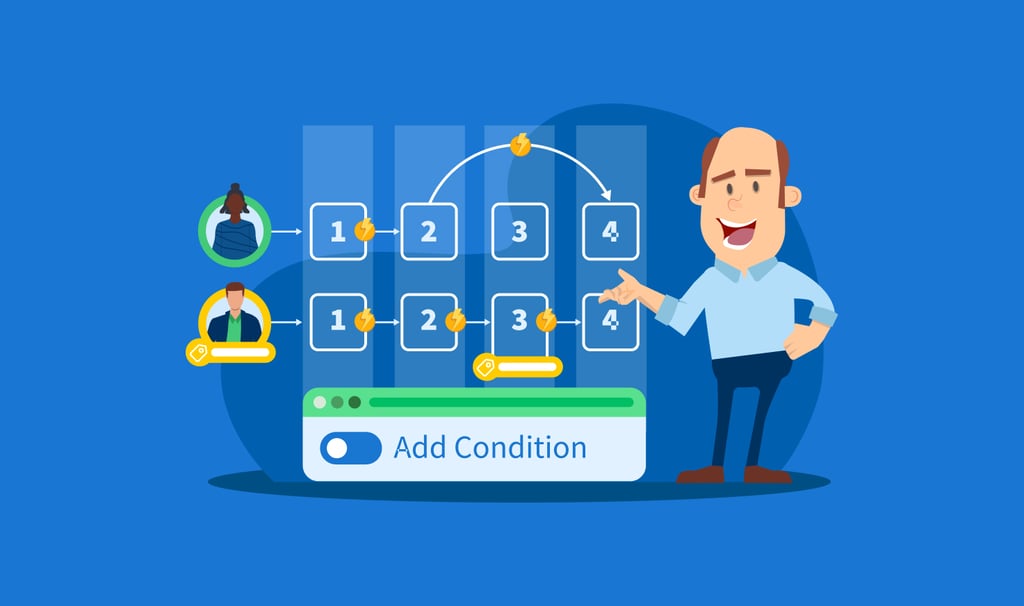
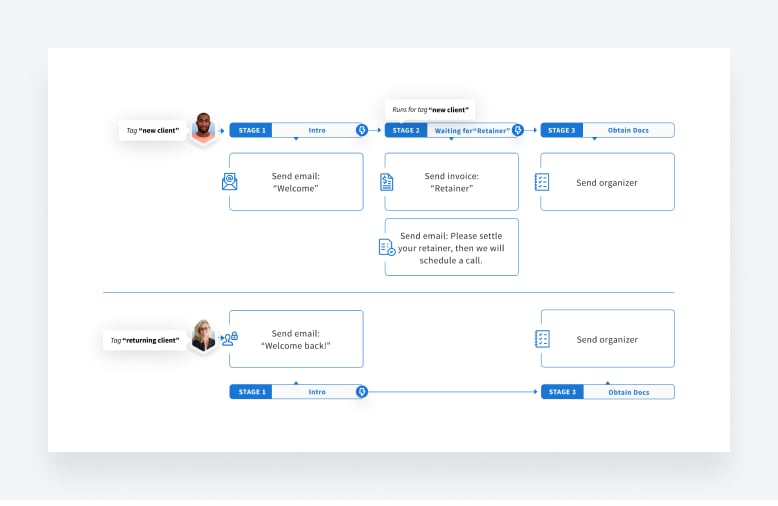
Not too long ago we introduced conditional automations. This powerful feature allows you to run different automations for different types of clients within one pipeline based on account tags. For example, you can send different email templates to new and returning clients.
From our discussions with the community, it became apparent that there were entire pipeline stages that were only needed for certain types of clients (example: clients on extension). For all of your 1040 clients, the process is the same, but some clients have extensions and some don’t. Conditional stages help give you that added flexibility through automation.
Watch our free webinar ‘Get Ready for Tax Season with TaxDome’s Accounting Automations’ where we dive into the recent workflow automation updates & discuss the options of setting up your 1040 pipelines.
Table of сontents
What are conditional stages?
Conditional stages allow Jobs to proceed to certain stages in your pipeline only if they meet certain criteria. Said a different way, conditional stages allow Jobs to skip stages of your pipeline if they do not meet certain criteria.
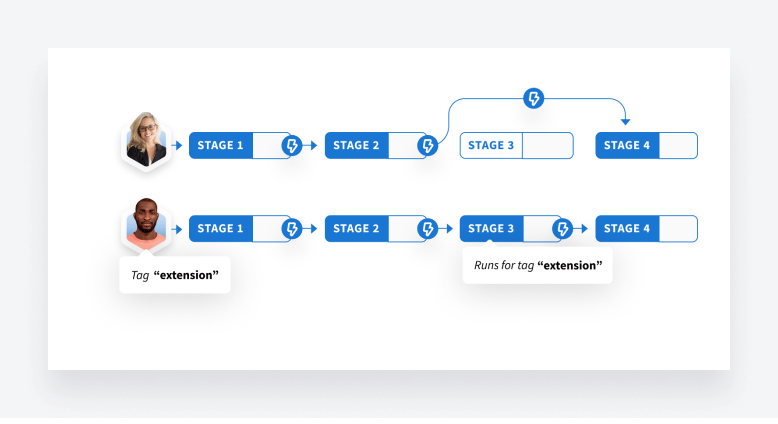
In our example below, we made the 3rd stage in the pipeline conditional based on if the account has the tag ‘Extension’.
Client A doesn’t have the ‘Extension’ tag, so the job will skip the 3rd stage and proceed to the 4th from the 2nd.
Client B has the ‘Extension’ tag, so the job will go through all the stages including the 3rd one.
When do you need conditional stages?
Here are several use cases on how to make them work.
One stage instead of multiple automations
You can use a conditional stage when you have multiple automations specifically for one type of client. Instead of adding conditions for each automation, you can create a stage with specific automations and run it only for accounts with the tag ‘New client’. If a client account does not have that tag, the Job will skip to the next stage.
Offshore & temporary staff
If you hire additional staff to help you during busy season, you may want to create a conditional stage for them. For example, a special stage where you assign accounts to offshore teams and create tasks with specific notes for them.
As a result, this pipeline may look similar to this one:
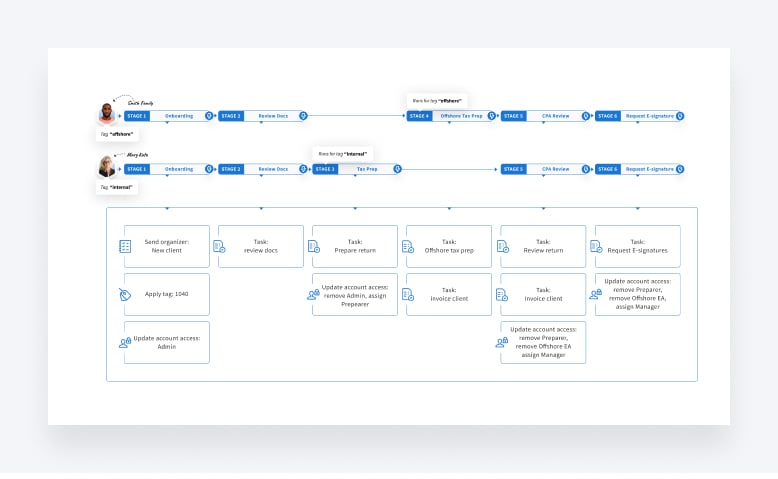
In our example, during the Review Docs stage you can manually apply tags ‘internal’ if you prepare it internally or ‘offshore’ for an offshore team. Depending on a tag, the job will end up either in Tax Prep or in Offshore Tax Prep stage, so that tasks and account access will be assigned to the right people.
Multiple staff in one workflow (pipeline)
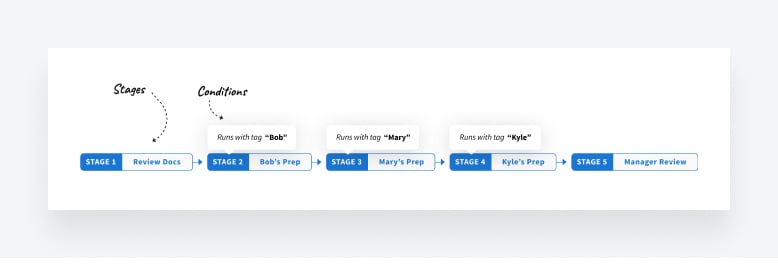
Using the same logic as offshore & temporary staff, you can use conditional stages to help allocate work amongst your team. Let’s say you have a large tax practice, servicing 5000 clients. In such a scenario, you likely have ~10 preparers working on returns. With conditional stages, you can have a different stage for each preparer, streamlining the process and allowing Jobs to skip from stage 3 to stage 10 (example).
The image below is for simplicity, with 4 preparers, but the same logic would work if you have 50. In this scenario, Bob’s clients will skip from stage 2 (Bob’s Prep) to stage 6 (Manager Review) as soon as Bob is done with his prep.
Waiting for retainer
If you want to charge prepayment retainers from new clients only, you can create a stage of ‘Waiting for retainer’ and create an invoice for $500 (or however much you want to charge) and add a condition that this stage only applies to those tagged ‘New Client’ — this way, you can easily at a glance see which of your leads are not moving along because they have yet to pay their retainer.
Extensions
In our user testing, we learned that many members of the community were using a specific pipeline stage exclusively for extensions and manually moving Jobs in and out of it. Using conditional stages, you can now automate this process.
Using the logic described above, if you add the tag ‘1040 Ext needed’ to the client account, only accounts with that tag will have their Jobs enter the extension stage, all others will skip it. As an idea, if this stage has a task of ‘file extension’ and automove is enabled, as soon as the task is complete the Job moves to the next stage of your workflow.
- Review
- Prep no ext.
- If extension needed, manually apply tag – needs extension.
- Extension
- Condition “needs extension”
- Prep post extension
Note: some members of the community prefer having a separate pipeline for extensions. Soon, you will be able to move jobs between pipelines!
How to set up conditional stages?
Conditional stages are triggered based on account tags. To make a stage conditional, simply click the gear icon and choose the tags that are required for Jobs to automove into this stage. If the account tag is not present, the Job will skip the stage.

Note:
- The first and last stages of a pipeline cannot have conditions.
- As a reminder, automove works when there is a binary action triggered (i.e contract signed, invoice paid, etc).
- Stage conditions only impact automove. You can manually move any job to any stage.
Read more on how to set up conditional stages.
What’s next?
As mentioned, soon you will be able to move jobs between pipelines and we are working on the ability to set different schedules for different accounts within the same pipeline!
Don’t forget to share your ideas in our Feature Request Board!

Maria is a Marketer at TaxDome. Having been working in both custom software and product development, she knows what clients care about and how to help businesses succeed. Enjoys all sorts of writing. When not writing, she's looking for a new hypothesis to test.
Get your free guide

Thank you!
The guide copy has been sent to your email. Please check your inbox!
Recommended articles
TaxDome AI: more than 2,000,000 documents organized for accountants this past tax season—and we’re just getting started

Webinar recap and Q&A: Summer Update 2026

Unpacking the differences between TaxDome Payments and Stripe